








Want to use a powerful AI like ChatGPT, but without the cloud, without a subscription and without your data ever leaving your desk? With gpt-oss-120b, OpenAI has released an open-weight language model that you can run entirely on your own computer. In this guide, we’ll show you step by step how to install it on Windows using the free app LM Studio. No programming knowledge required.
An AI that runs offline on your computer and that you can chat with just like ChatGPT.
Your text, documents and questions stay on your device, which is good news for data protection.
Other programs can use your AI via a local interface.
Key terms in a nutshell
Don’t worry – you don’t need to understand everything to get started. But you’ll come across these terms in the guide:
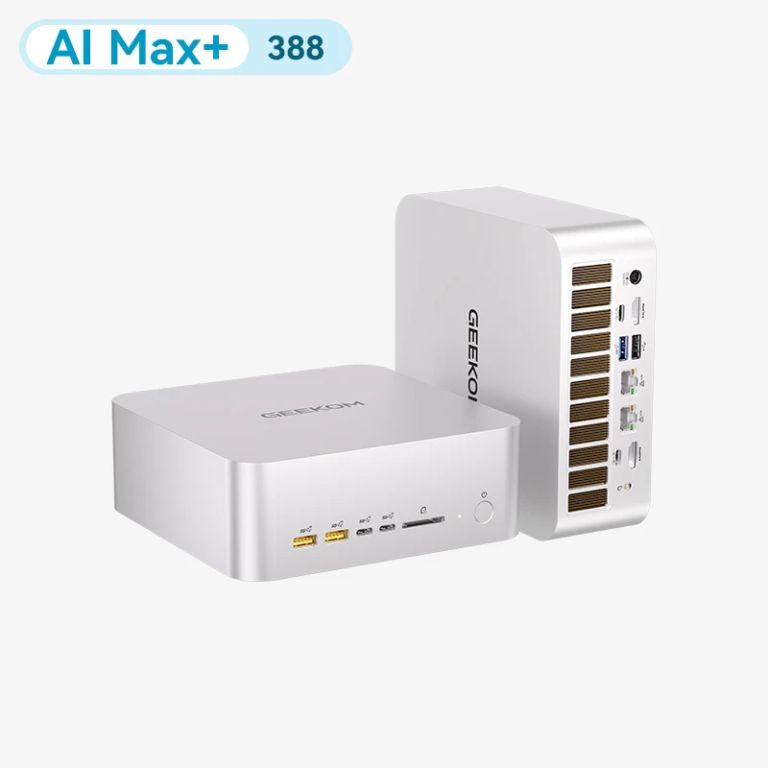
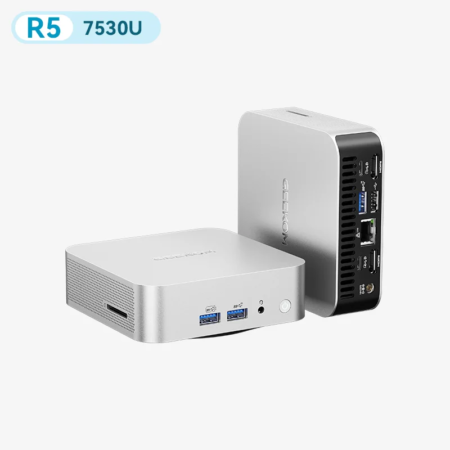
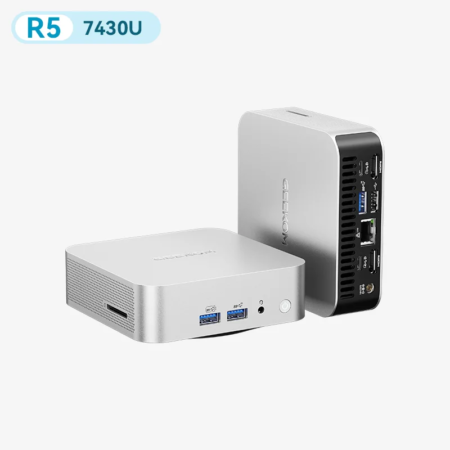
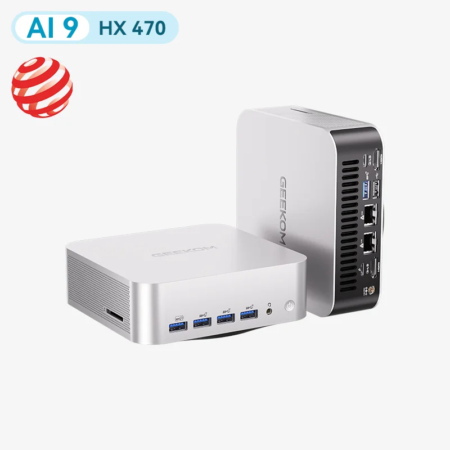
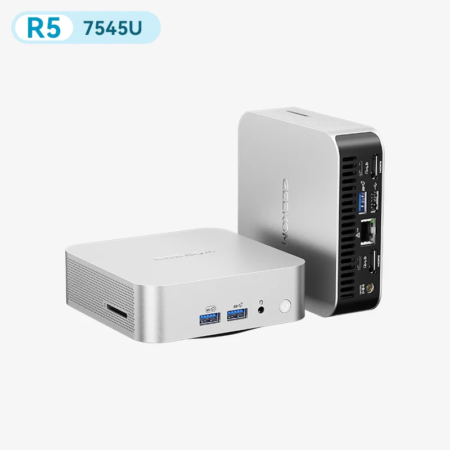
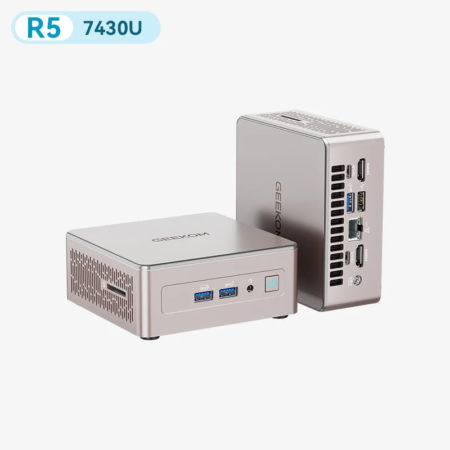
Why run gpt-oss-120b on the GEEKOM A9 Mega?
Large language models need one thing above all: lots of fast memory. According to LM Studio, gpt-oss-120b takes up around 65GB. Ordinary PCs and most graphics cards don’t have nearly enough memory for that.
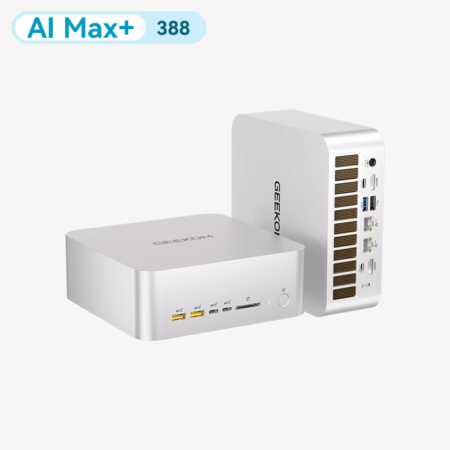
The GEEKOM A9 Mega with AMD Ryzen AI Max+ 395 solves the problem with 128GB of unified memory: the CPU and the GPU share the same large pool. You can assign up to 96GB of it to the graphics (AMD) – enough for gpt-oss-120b, with plenty of headroom left for Windows and longer conversations. You can read more about the platform in our guide to AMD Strix Halo.
On top of that, the model itself is cleverly designed: although gpt-oss-120b has around 117 billion parameters, it only activates about 5.1 billion of them per token (“Mixture of Experts”). That’s why it responds quickly despite its size.
On that model, use the smaller gpt-oss-20b instead. The steps are identical – you simply search for “gpt-oss-20b” in Step 4.
Before you start: the checklist
Step 1: Update your AMD graphics driver
The driver is the link between Windows and the graphics processor. An up-to-date driver is the single most important requirement for running the AI quickly.
- Open the AMD Software: Adrenalin Edition app (type “AMD Software” into the taskbar search box). If it isn’t installed, download the driver from the AMD support page.
- Click Check for Updates and install the latest recommended version.
- Restart Windows.
- Open Task Manager (Ctrl + Shift + Esc), go to Performance and check that AMD Radeon is listed as a GPU.
Step 2: Give the graphics enough memory
By default, the graphics processor only gets a small share of the 128GB. To let the large model run entirely on the GPU, you increase this share once.
- Open AMD Software: Adrenalin Edition.
- Go to Performance → Tuning → System and find Variable Graphics Memory.
- Select Custom and set it to 96GB.
- Restart your PC. The setting only takes effect after a restart.
Step 3: Install and set up LM Studio
- Go to lmstudio.ai and download the Windows (x64) version.
- Run the downloaded file and follow the installation wizard.
- Open LM Studio once it’s installed.
Choose where models are stored (important – do this before downloading anything): By default, LM Studio saves models to the C: drive. A 65GB model can quickly fill up your system drive.
- In LM Studio, open My Models (the folder icon in the left sidebar).
- Change the Models Directory to an SSD with enough free space, e.g.
D:\LMStudio\Models.
Step 4: Download gpt-oss-120b
- Click the magnifying glass (Discover) in the left sidebar.
- Type
gpt-oss-120binto the search box. - Select the official entry openai/gpt-oss-120b. Make sure OpenAI is shown as the publisher.
- Click Download.
Now it’s time to wait. Here’s roughly how long a 65GB download takes on typical NBN plans:
| NBN plan | Approx. download time |
|---|---|
| NBN 25 (25Mbps, entry level) | approx. 6 hours |
| NBN 50 (50Mbps) | approx. 3 hours |
| NBN 100 (100Mbps) | approx. 1.5 hours |
| NBN 500 (500Mbps) | approx. 17 minutes |
| NBN 1000 (1000Mbps) | approx. 9 minutes |
Step 5: Load the model for the first time
The model is now on your SSD. To chat with it, LM Studio needs to load it into memory.
- Click the speech-bubble icon (Chat) in the left sidebar.
- Click Select a model to load at the top centre and choose gpt-oss-120b.
- Turn on Manually choose model load parameters so you can see the settings.
- Set the values as shown in the table and click Load Model.
| LM Studio setting | Recommended value | What it does |
|---|---|---|
| GPU Offload | MaximumSlider all the way to the right | The GPU handles all the processing. |
| Context Length | 32768 | The AI remembers roughly 24,000 words per conversation. A safe starting point. |
| Flash Attention | On | Saves memory and speeds up long conversations. |
| Offload KV Cache to GPU Memory | On | Keeps the AI’s “short-term memory” in fast graphics memory. |
The first load takes one to two minutes, depending on your SSD. You’ll then see the model name at the top and a text box at the bottom.
Why not go straight to the maximum context length?
gpt-oss-120b supports a context of up to around 131,000 tokens. But the larger the context, the more memory LM Studio reserves the moment it loads the model. So start with 32,768 and only increase it once everything runs smoothly:
- 32K: standard for chats, emails and short documents
- 64K: for long PDFs, contracts or meeting minutes
- 128K: only when you need it, and after checking in Task Manager that enough memory is free
Step 6: Check that the GPU is really doing the work
The most common beginner mistake: the AI runs, but only on the CPU – up to ten times slower. Here’s how to check in under a minute:
- Open Task Manager and go to Performance → GPU.
- Click the small arrow on one of the graphs and switch it to Compute, if available.
- Type a longer question into the LM Studio chat and watch the graph while the AI answers.
Step 7: Your first chat
Try entering a question like this:
If the AI gives a sensible answer, the installation is complete. Congratulations – you’re now running your own AI completely offline.
Adjusting the reasoning effort
gpt-oss-120b can “think” more or less thoroughly before it answers. In LM Studio, you’ll find this under Reasoning Effort:
| Level | Best for |
|---|---|
| Low | Quick answers, simple questions, rewording text |
| Medium | Recommended default for most tasks |
| High | Complex tasks such as maths, coding or analysis. Takes longer. |
Step 8 (optional): Make the AI available to other programs
This step is only relevant if you want to use your local AI in your own scripts, automations or apps. For normal chatting, you can skip it.
LM Studio provides an OpenAI-compatible API, so many programs that normally use ChatGPT can use your local AI instead (LM Studio docs).
- Click Developer in the left sidebar (the icon with angle brackets).
- Check that gpt-oss-120b is loaded.
- Leave the port at 1234 and switch the server on via Status: Running.
Test it in PowerShell (press the Windows key, type “PowerShell” and open it):
curl.exe http://localhost:1234/v1/models
If a list with the model name appears, the API is running. You can send your first request like this:
$body = @{
  model = "openai/gpt-oss-120b"
  messages = @(
    @{
      role = "user"
      content = "Describe the GEEKOM A9 Mega in one sentence."
    }
  )
  max_tokens = 200
} | ConvertTo-Json -Depth 5

Invoke-RestMethod -Uri "http://localhost:1234/v1/chat/completions" `
  -Method Post `
  -ContentType "application/json; charset=utf-8" `
  -Body $body
For Python users
First install Python for Windows and tick “Add python.exe to PATH” during installation. Then run this in PowerShell:
py -m pip install openaiSave this script as test_ai.py and run it with py test_ai.py:
from openai import OpenAI

client = OpenAI(
    base_url="http://localhost:1234/v1",
    api_key="lm-studio"
)

response = client.chat.completions.create(
    model="openai/gpt-oss-120b",
    messages=[
        {
            "role": "user",
            "content": "Introduce yourself in three sentences."
        }
    ],
    max_tokens=300,
)

print(response.choices[0].message.content)Step 9 (optional): Access from other devices on your home network
By default, your AI is only reachable on the A9 Mega itself – the safest setting. If you’d like to use it from a laptop or another PC on the same network:
- On the Developer page, enable Serve on Local Network.
- Turn on authentication and set an API key.
- Allow LM Studio through Windows Firewall for private networks only, not public ones.
- On the other device, use the address
http://IP-OF-YOUR-A9-MEGA:1234/v1, e.g.http://192.168.0.50:1234/v1.
Troubleshooting: the most common problems
| Problem | Likely cause | Solution |
|---|---|---|
| Model won’t load | Not enough free memory | Close other apps, set the context length to 32768 and load only one model at a time. Check that Step 2 (96GB) is active. |
| Very slow answers, GPU at 0% | AI running on the CPU only | Update the AMD driver (Step 1), set GPU Offload to Maximum, and update the runtime in LM Studio with Ctrl + Shift + R. |
| Gets slower as the conversation goes on | Very long conversation, context full | Start a new chat and turn on Flash Attention. |
| Odd formatting or characters | Settings have been changed | Reset the model settings to their defaults. |
| Windows feels sluggish | Context length too high | Lower the context length and check memory usage in Task Manager. |
FAQs: Running gpt-oss-120b locally
Is gpt-oss-120b free?
Yes. The model is released under the Apache 2.0 licence and can be used free of charge for both personal and commercial purposes. LM Studio is free too.
Do I still need an internet connection after installation?
No. Once downloaded, gpt-oss-120b runs completely offline. Your prompts aren’t sent to OpenAI or any other server.
Is a local AI compliant with Australian privacy law?
Because everything stays on your device, nothing is sent to a cloud provider, which is a big advantage when you’re working with customer or internal information. Whether a particular use meets your obligations under the Privacy Act 1988 and the Australian Privacy Principles (APPs) still depends on what data you handle and how you use it. Note that many small businesses with an annual turnover of A$3 million or less are exempt from the Privacy Act, though there are exceptions, such as health service providers. If you’re using local AI at work, check with your organisation’s privacy officer and see the OAIC’s guidance on privacy and the use of commercially available AI products.
How does gpt-oss-120b compare with ChatGPT?
gpt-oss-120b is one of the strongest open-weight models available and handles writing, summaries, analysis and coding tasks well. The latest cloud models still have the edge for some tasks and can access up-to-date information from the internet, which a local AI can’t.
Does this guide work with less memory?
gpt-oss-120b needs around 65GB of free memory for the model alone. With 64GB of RAM or less, use gpt-oss-20b instead – the steps are the same. Not sure which configuration you need? See our guide: Do you need 64GB of RAM in an AI mini PC?
Conclusion
With LM Studio and the GEEKOM A9 Mega, you can run one of the most capable open-weight AI models entirely on your own machine in about half an hour, plus download time. The key points for a smooth start: an up-to-date AMD driver, 96GB assigned to the graphics, GPU Offload set to Maximum, and a 32K context to begin with. That way your AI stays fast and stable – and your data stays with you.